Test Environment:
- LPA3588: Ubuntu 20.04
- Kernel Version: 5.10.110
- Install required tools on the development board:
sudo apt update
sudo apt-get install python3 python3-pip python3-setuptools \
                       python3-wheel ninja-build
sudo pip3 install meson
Compile libmali
1. Preparation
Copy the libmali source code to the /home/neardi directory on the development board:
cp -r SDK/external/libmali /home/neardi/
2. Compilation
Enter the libmali directory and compile using meson:
neardi@LPA3588:~$ cd ~/libmali
neardi@LPA3588:~/libmali$ meson setup builddir -Darch=aarch64 -Dplatform=x11 -Dgpu=valhall-g610 -Dversion=g6p0 -Dkhr-header=true
Option explanation:
-Darch=aarch64: Set architecture to ARM 64-bit.-Dplatform=x11: Set platform to X11.-Dgpu=valhall-g610: Specify GPU type.-Dversion=g6p0: Set version number.-Dkhr-header=true: Enable Khronos header support.
Expected successful output:
The Meson build system
Version: 1.5.2
Source dir: /home/neardi/libmali
Build dir: /home/neardi/libmali/builddir
Build type: native build
Project name: libmali
Project version: 1.9.0
C compiler for the host machine: cc (gcc 9.4.0 "cc (Ubuntu 9.4.0-1ubuntu1~20.04.2) 9.4.0")
.....

libmali 1.9.0

  User defined options
    arch      : aarch64
    gpu       : valhall-g610
    khr-header: true
    platform  : x11
    version   : g6p0

Found ninja-1.11.1.git.kitware.jobserver-1 at /home/neardi/.local/bin/ninja
3. Installation
After successful compilation, install the compiled library using ninja:
neardi@LPA3588:~/libmali$ ninja -C builddir
neardi@LPA3588:~/libmali$ sudo ninja -C build install
Expected successful installation output:
ninja: Entering directory `builddir'
[0/1] Installing files.
Installing subdir /home/neardi/libmali/include/GBM to /usr/local/include/
Installing /home/neardi/libmali/include/GBM/gbm.h to /usr/local/include
.....
Installing symlink pointing to libGLESv1_CM.so.1 to /usr/local/lib/aarch64-linux-gnu/libGLESv1_CM.so
Installing symlink pointing to libGLESv2.so.2 to /usr/local/lib/aarch64-linux-gnu/libGLESv2.so
Installing symlink pointing to libMaliOpenCL.so.1 to /usr/local/lib/aarch64-linux-gnu/libMaliOpenCL.so
Running custom install script '/home/neardi/libmali/scripts/fixup_dummy.sh lib/aarch64-linux-gnu optimize_3/aarch64-linux-gnu/libmali-valhall-g610-g6p0-x11-gbm.so'
4. Verify Installed Library Files
ls /usr/local/lib/aarch64-linux-gnu/ | grep mali
If the output lists files such as libmali.so, libGLESv2.so, and libmali-valhall-g610-g6p0-x11-gbm.so, it means the installation was successful.
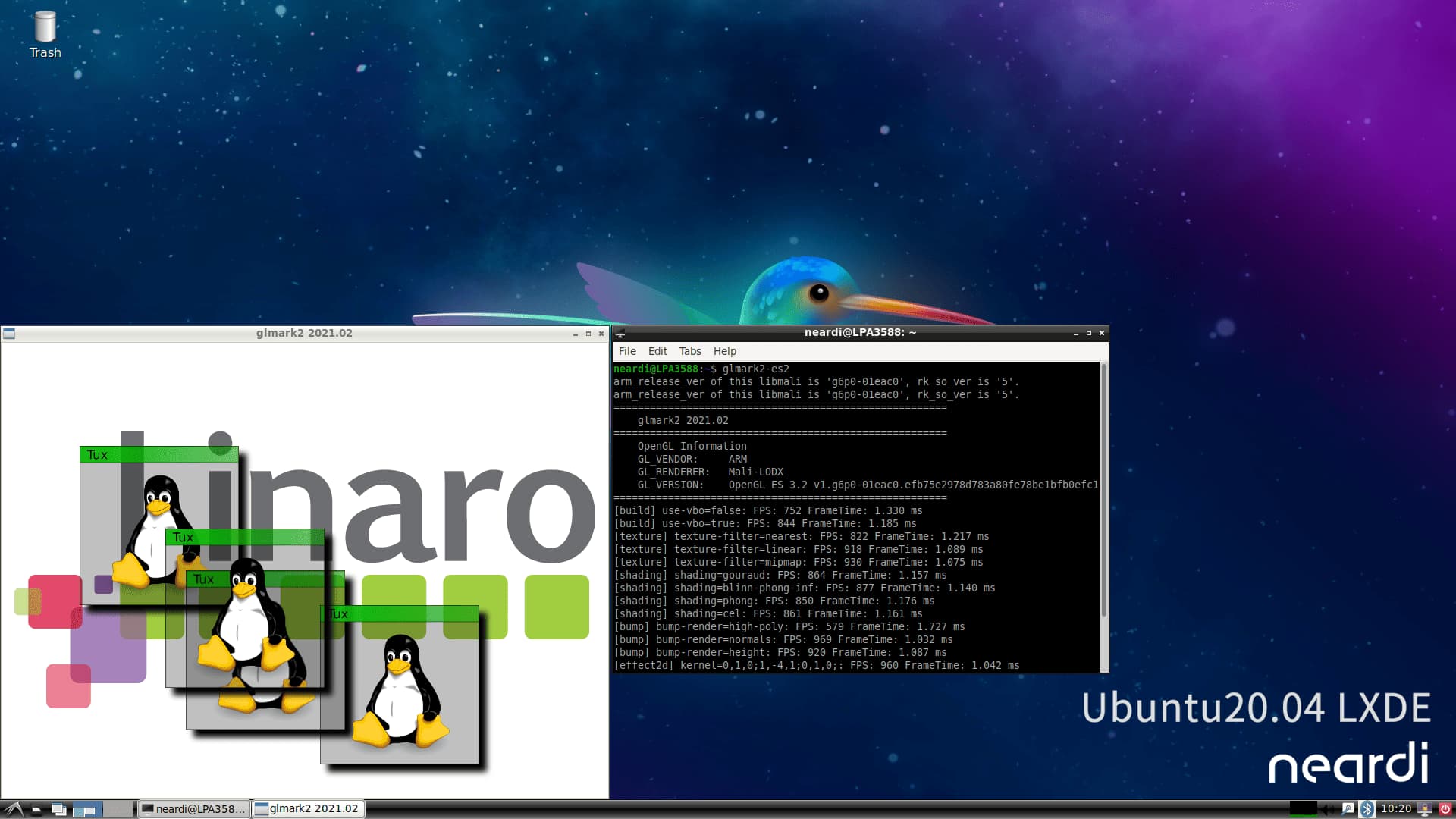
5. Run glmark2-es2 for Verification
Launch a terminal on LPA3588 and run glmark2-es2 to test functionality and performance. If it runs successfully, it means libmali is properly installed and configured.
Example output screenshot:
6. Common Issues
- If a message like below appears during compilation:
meson.build:1:0: ERROR: Meson version is 0.53.2 but project requires >=0.54.0
Check the path of the meson being used:
which meson
For example, if it outputs /usr/bin/meson, update the system default Meson version:
sudo ln -sf /usr/local/bin/meson /usr/bin/meson
Check the meson version:
meson --version
Make sure the output version is 1.5.2 or higher, then recompile and install libmali.